
If a message claims to be from Microsoft and asks you to sign in, verify your account, or open an attachment, don’t click anything inside it. Report it or delete it first, then verify separately.
The fastest path in Outlook is the built-in tool: select the message and choose Report > Report phishing, which pulls the email out of your inbox and hands it to Microsoft for analysis. If you’re using Gmail, Yahoo, or another client, forward the message as an attachment to phish@office365.microsoft.com instead of just hitting forward.
Before you do either, run three quick checks:
-
Hover over the sender’s name (don’t click) to see the real email address behind it.
-
Look for Outlook’s “unverified” banner or a “via” tag next to the sender, both signs the domain doesn’t match what’s displayed.
-
Never click a link inside the email to “verify” anything. Type Microsoft’s address into your browser yourself, or use a bookmark.
Pro Tip: Treat every unexpected “your account needs attention” email the same way you’d treat a stranger calling and claiming to be your bank. Hang up, and call the number on the back of your card instead.
Key Takeaways
A Microsoft phishing email should be reported through Outlook’s “Report phishing” tool or forwarded as an attachment to phish@office365.microsoft.com, then followed by session and password resets if you clicked anything.
| Point | Details |
|---|---|
| Verify before you click | Hover over sender names and links; never trust a login prompt reached through an email link. |
| Report, don’t just delete | Use Outlook’s Report > Report phishing, or forward non-Outlook emails as an attachment to phish@office365.microsoft.com. |
| Revoke sessions, not just passwords | AiTM attacks steal active tokens, so sign out of all sessions and check OAuth app permissions after any suspected phish. |
| Watch for staged attacks | CAPTCHA gates, “case log” PDFs, and device-code prompts are signs of modern AiTM and PhaaS campaigns. |
| Stay ahead of new campaigns | Scruteon’s free newsletter and advice page help readers spot and report active scams as they emerge. |
Where This Guide’s Information Comes From
-
Microsoft Support: Phishing and suspicious behavior in Outlook
-
Microsoft Security Blog: Multi-stage AiTM token compromise campaign
Table of Contents
-
How to Spot a Microsoft Phishing Email Before You Click Anything
-
How Do You Report Phishing in Outlook, Teams, and Other Email Apps?
-
What Should You Do If You Think You’ve Already Been Phished?
-
What Do Recent Microsoft Phishing Campaigns Actually Look Like?
How to Spot a Microsoft Phishing Email Before You Click Anything
Most Microsoft phishing emails share a handful of tells, and once you know what to look for, spotting them gets fast. The generic greeting (“Dear Customer” instead of your name), the manufactured urgency (“your account will be suspended in 24 hours”), and the slightly-off grammar are the classic three. Logos that look almost right but are stretched, pixelated, or use the wrong shade of blue are another giveaway. Real Microsoft account notices don’t threaten immediate lockout over minor issues, and they don’t ask you to “confirm your identity” by entering your password into a form embedded in the email itself.

Links deserve their own scrutiny. Hovering your cursor over any link (without clicking) reveals the actual destination URL at the bottom of your browser or email client. If the display text says “office.com” but the hover reveals “office-365-secure-login.net” or something with random characters, you’ve found a phishing link. Attachments are just as risky. Be especially wary of PDFs labeled things like “case log,” “invoice review,” or “voicemail,” which are increasingly used as the first stage in multi-step attacks rather than containing malware directly.
Outlook builds in some of its own warning signs, and they’re worth memorizing:
-
The “unverified” banner. Outlook flags a message when it can’t confirm the sender’s identity matches the domain.
-
The “via” tag. If you see “Microsoft Support via randomdomain.com,” the email is routing through a domain that isn’t Microsoft’s, a common spoofing technique.
-
A question mark instead of a photo or initials in the sender’s profile icon, which usually means Outlook has no trusted record for that address.
-
Hovering over the sender name to reveal the full email address, since display names can be set to anything the attacker wants.
Watch for more advanced tricks, too. Some campaigns now show a device-code prompt asking you to enter a code on what looks like a legitimate Microsoft sign-in page. Others route you through a CAPTCHA page first, a tactic borrowed from legitimate security tools to make the fake page feel more trustworthy. If an email or linked page asks you to “sign in with Microsoft” and you didn’t initiate that sign-in yourself, stop and close the tab.
How Do You Report Phishing in Outlook, Teams, and Other Email Apps?
Reporting takes less time than deleting and forgetting, and it actually does something: reporting a phishing email removes it from your inbox and feeds Microsoft’s filtering systems, which helps catch the next wave of the same campaign before it reaches other people.
In Outlook or Outlook.com, the process takes about five seconds:
-
Select the suspicious message.
-
Click Report in the ribbon (or right-click the message) and choose Report phishing.
-
Outlook removes it from your inbox automatically and submits it for review.
In Microsoft Teams, phishing links sometimes arrive as chat messages instead of emails:
-
Hover over the message and click the three-dot More options menu.
-
Select Report this message.
-
Choose Security risk or Spam/phishing as the reason.
If you’re using Gmail, Apple Mail, Yahoo, or any non-Outlook client, the correct move is to forward the message as an attachment (not a standard forward) to phish@office365.microsoft.com. This matters more than it sounds: forwarding the raw message preserves the email headers that Microsoft’s security team needs to trace where the message actually originated. A normal forward often strips or rewrites that header data, making the report far less useful for catching the sender.
Pro Tip: Most email apps let you download a message as a .eml or .msg file before attaching it, which is the cleanest way to forward “as an attachment” if your client doesn’t offer that option directly.
What Should You Do If You Think You’ve Already Been Phished?
Speed matters here more than almost anything else. Work through this checklist in order:
-
Sign out of all active sessions. Go to your Microsoft account security settings and revoke access from every device and session, not just the one you’re using now.
-
Change your password immediately, from a device you trust. Use a unique password you haven’t reused elsewhere, ideally generated and stored by a password manager.
-
Revoke OAuth app permissions. Check which third-party apps have access to your account and remove anything unfamiliar. Some AiTM attacks steal a live authentication token rather than your password, meaning the attacker can stay logged in even after you change your credentials.
-
Review your recent sign-in activity. Look for unfamiliar locations, devices, or IP addresses, and write down timestamps and details in case you need them for a report later.
-
File a report. Submit the phishing email through Microsoft’s reporting channel, and if money, sensitive business data, or a large-scale scam kit appears to be involved, file a complaint with the FBI’s Internet Crime Complaint Center as well.
-
Tell your IT team or bank if the compromised account touches work systems or financial accounts.
Changing your password alone often isn’t enough anymore. Token-theft attacks can leave an attacker’s session active even after you’ve locked them out of your login page, so revoking sessions and app permissions is not optional.
What Do Recent Microsoft Phishing Campaigns Actually Look Like?
Phishing has moved well past the crude “you’ve won a prize” emails of a decade ago. Two developments explain most of what shows up in inboxes today.
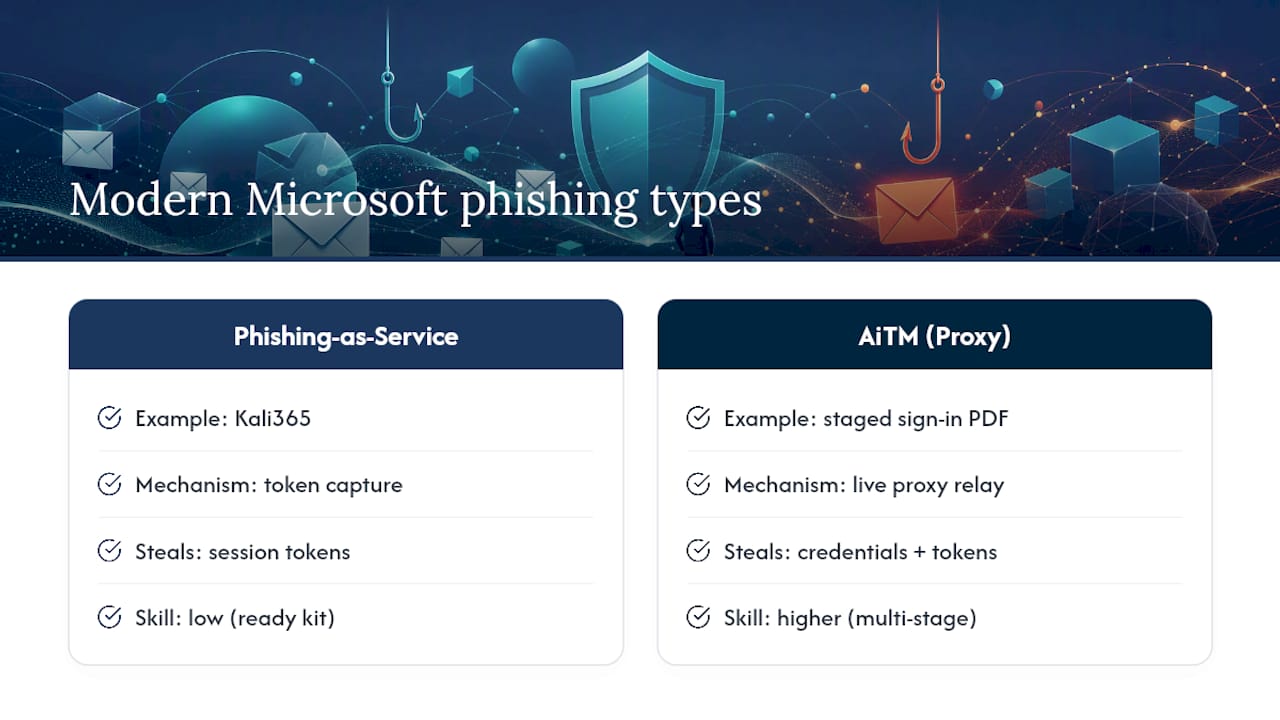
The first is Phishing-as-a-Service. The FBI’s Internet Crime Complaint Center issued a public warning about Kali365, a prebuilt kit sold to attackers that automates the theft of Microsoft 365 OAuth tokens. Instead of stealing a password, Kali365 captures the token your browser uses after you log in, which can let an attacker bypass multifactor authentication entirely and stay logged into your account without ever knowing your credentials. Kits like this hand less-skilled attackers a working attack chain, which is a big part of why phishing volume keeps climbing.
The second is Adversary-in-the-Middle, or AiTM, attacks. Microsoft’s own security researchers documented a multi-stage campaign that opened with a PDF attachment styled as a “code of conduct” document, routed victims through a CAPTCHA page to look legitimate, and then presented a staged Microsoft sign-in screen that quietly relayed the victim’s credentials and session token to the attacker in real time.
Pause before entering credentials anywhere a CAPTCHA or intermediate page appears between an email link and a login screen. Legitimate Microsoft sign-ins rarely route through a third-party gate first, and that extra step is often the tell that a proxy attack is underway.
Even the “it came from Microsoft” test has stopped being reliable. Investigative reporting uncovered scammers abusing a genuine internal Microsoft notification account to distribute spam links, which means an email’s sender address alone can no longer prove it’s safe. If you notice a “case log” or “review document” PDF, an unexpected CAPTCHA, or a login prompt with a device code you never requested, treat all three as active warning signs, not coincidences.
Why Trust This Guide on Microsoft Phishing Emails?
Scruteon exists specifically to track this kind of thing. The free newsletter sends one to two alerts a week covering real-time scams, including phishing, tech support fraud, romance scams, and elder fraud, written so that a reader with no security background can act on them immediately.
This guide was put together with contributions from Winston, who covers phishing, tech support fraud, and elder scams for Scruteon’s ongoing monitoring.
-
Scruteon breaks down active scam campaigns as they’re discovered, not months after the fact.
-
Readers who want a second opinion on a suspicious message can request a free review through Scruteon’s advice page.
-
The free scam prevention guide covers the same practical, no-jargon approach used throughout this article.
A quick note from Winston on why habits beat vigilance
Nobody catches every phishing email by staring harder at their inbox. What actually works is boring, repeatable habits: hover before you click, navigate to Microsoft through your own bookmark instead of an email link, and report instead of just deleting. Attackers count on you being in a hurry. Slow down for ten seconds and most of these attempts fall apart on their own.
Get Scruteon’s Free Scam Alerts in Your Inbox
Scruteon is a free alternative to figuring this out alone. Instead of hunting for security news after something’s already gone wrong, you get one to two short alerts a week flagging the exact campaigns making the rounds, written in plain language with no security background required.
If you’ve already got a suspicious email sitting in your inbox right now and you’re not sure whether to trust it, you don’t have to guess alone. Send it to Scruteon for a free, no-obligation review and get a straight answer before you click anything.
The information in this article is for educational purposes only. Scam tactics change fast, and we cannot guarantee that this information is always complete or up to date.